Artificial intelligence (AI) is technology that lets computers do tasks that usually require human thinking, like learning from data, answering questions, and recognizing speech or images. In everyday life, you can use AI in many ways. For example, AI chatbots (like ChatGPT or Google Bard) can answer your questions or help you write messages. AI art tools (like DALL·E) can create images from a text description. Voice assistants (like Alexa or Siri) respond to your spoken commands. Even apps like email or spreadsheets now have AI features (such as smart compose or data analysis).
This article explains step-by-step how to start using common AI tools. We cover chatbots, image generation, voice assistants, productivity apps, and AI for learning, all in clear language. We give short examples and 4–6 practical tips to help you get the best results. We also include safety and privacy advice (for example, don’t share personal data with AI), a comparison table of five beginner-friendly AI tools, a simple flowchart showing how to start an AI chat, a brief FAQ, and a conclusion with next steps. By the end, you’ll have a friendly guide to using AI in your daily life, even if you’re new to it.
AI Chatbots
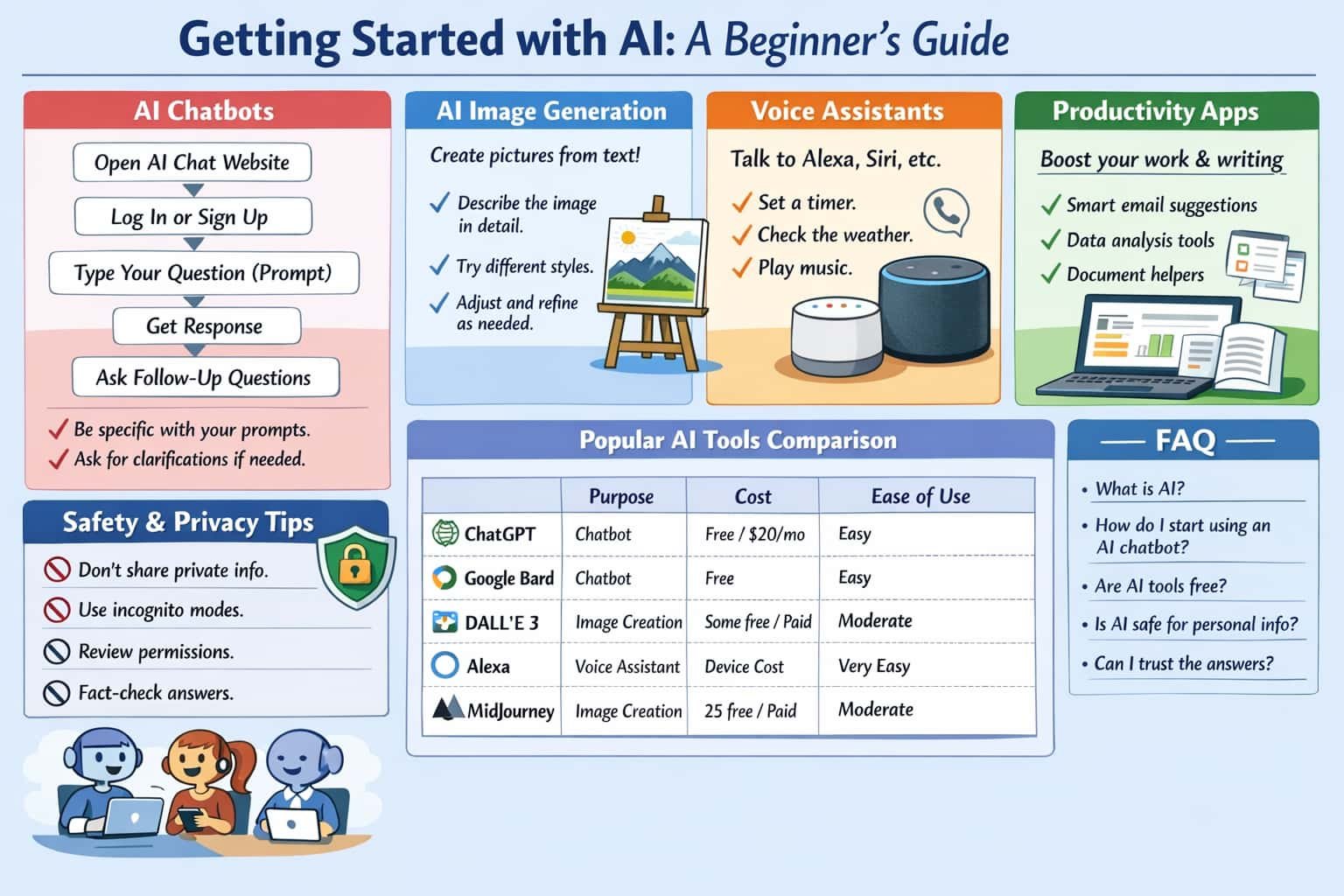
AI chatbots are programs you can talk to by typing questions or commands. One popular example is ChatGPT. ChatGPT “is an AI assistant that helps you think, write, and solve problems by understanding natural language and generating human-like responses in real time”. In other words, you type a normal question or request, and it tries to answer like a person. For instance, you might ask it to draft an email, explain a concept, or write a poem. ChatGPT is built on a large language model (LLM) that learned from a vast amount of text, so it can carry on a conversation and help with many tasks.
To use ChatGPT, follow these steps:
- Go to chat.openai.com in your web browser and sign in or create an account (there is a free basic version).
- In the chat box, type your question or command (this is called a prompt). For example:
Write a polite email saying you will be late to a meeting.. - Press Enter or click submit. ChatGPT will process your prompt and display an answer in the chat window.
- Read its response. If you need more details or a change, just ask follow-up questions (like “Can you shorten it?”).
Below is a simple flowchart showing these steps for using an AI chatbot:
mermaid
flowchart LR
    A[Open the AI tool website or app] --> B[Log in or sign up if needed]
    B --> C[Type your question or request (prompt)]
    C --> D[Press Enter or click Submit]
    D --> E[AI generates and shows a response]
    E --> F[Read the response and ask follow-ups if needed]
Another example of an AI chatbot is Google Bard. To use Bard:
- Go to bard.google.com and sign in with your Google account.
- In the text box at the bottom, type a clear question or request (a prompt). For example, you could ask “What is a healthy recipe for dinner?”.
- Press Enter or click Submit. Bard will generate a response in the chat window.
- You can then read Bard’s answer and ask it to clarify or add more info if needed.
In both ChatGPT and Bard, remember to write specific and clear prompts. The better you phrase your question, the more useful the answer. For example, include details (“Explain this step by step” or “use simple words”) to get a helpful result. Also, always double-check important facts, since AI can sometimes make mistakes or give inaccurate information.
AI Image Generation
AI can also create pictures from text. For example, DALL·E 3 (by OpenAI) is an AI model “capable of generating images from textual descriptions”. To use an image generator:
- Go to the DALL·E website (for example, via ChatGPT+ or Bing Image Creator) or a similar tool.
- Type in a detailed description of the image you want. For instance, “a watercolor painting of a cat sitting on a cloud” or “futuristic city at sunset with flying cars”.
- Press Generate. The AI will create one or more images based on your prompt.
Tip: Be as descriptive as possible. Mention colors, style, or mood to guide the AI. For example, saying “in the style of a Van Gogh painting” can influence the look. If the first image isn’t exactly what you wanted, tweak the words and try again. For instance, add more adjectives or change the scene. You can often ask the tool to make variations or edits after generating.
A short example: if you prompt “a serene mountain landscape at sunrise, photo by Ansel Adams,” the AI will try to produce a nature photo-like image of mountains at dawn. Each tool is slightly different, but in general the steps are the same: give a clear description, generate, and adjust as needed.
Voice Assistants
Voice assistants are AI tools you talk to by speaking. Examples include Amazon Alexa (in Echo speakers) and Apple Siri (on iPhones). These devices are “always listening, always ready” to react to a wake word (like “Alexa” or “Hey Siri”). After you say the wake word, ask a question or give a command out loud. For example:
- “Alexa, set a timer for 5 minutes,” and Alexa will start a timer.
- “Siri, what’s the weather today?” and Siri will speak the forecast.
- “Hey Google, play relaxing music,” and Google Assistant will play music.
There are many handy tricks. You can say “Find my phone” and the assistant will make your phone ring. In browsers, you can even say “Hey Google, read this page” to have Google Assistant read the text on a webpage aloud. You can use assistants as reminders or “memory”: for example, say “Alexa, remember that I left my keys on the table,” and later ask “Alexa, where are my keys?” (assuming you set that up). You can also set your home or work addresses in the device and ask “How is traffic to work?” to get a traffic update for your commute.
Privacy note: Voice assistants record your commands after hearing the wake word. Your voice clip is sent to the company’s servers to be processed, and is usually saved under your account. You can review and delete these recordings in the assistant’s app or privacy settings. This is important to know: avoid saying sensitive personal information (like passwords) to your assistant, and you can periodically delete history for more privacy.
AI in Productivity Apps
Many everyday apps have built-in AI features to help you work faster. Examples include:
-
Email writing (Gmail, Outlook): These apps offer smart compose suggestions. In Gmail, open Settings (gear icon) → See all settings → General, scroll to Smart Compose, and turn on “Writing suggestions”. Now, as you type an email, Gmail will show greyed-out suggestions. Press Tab to accept a suggestion. Outlook has a similar feature: go to File → Options → Mail and enable “Text Predictions”. This AI can finish your sentences or suggest next words.
-
Spreadsheets (Excel, Google Sheets): You can ask AI to analyze your data. In Microsoft Excel, click the Analyze Data button on the Home tab. A panel will open where you can type questions in plain language (e.g., “show me a chart of total sales by month”). Excel will then generate charts or insights automatically. In Google Sheets, look for the Explore icon (a small star or graph icon). Clicking it opens the AI Explore tool, which can suggest charts and answer questions about your sheet. These tools are great to find patterns or create visuals without complex formulas.
-
Documents (Google Docs, Microsoft Word): Google Docs has its own Smart Compose. In a Google Doc, click Tools → Preferences and check “Show Smart Compose suggestions”. You can also press Ctrl+Alt+Shift+I (or click Tools → Explore) to open an AI research panel. There you can search the web or insert AI suggestions. Microsoft Word/Office has similar features (like Editor suggestions and the new Copilot tool).
-
Presentations (PowerPoint Designer): In PowerPoint, simply add a title or text to a slide. Then on the right side look for “Design Ideas.” Clicking it will show professionally-designed layouts and images. Click a suggestion to apply it. This AI feature instantly formats your slides with visuals and layout ideas.
Using these built-in AI helpers can save time. For instance, one business report noted that AI tools could save an employee 20–30 minutes a day on email and cut research time in half. Even if you don’t use every suggestion, they can spark ideas or speed up routine writing.
AI for Learning
AI can be a useful learning companion. For example:
-
Reading and language: Some apps can read stories aloud and highlight words, helping learners with reading skills. “Many AI-powered reading tools can read stories aloud, highlight words as they are spoken, and give gentle feedback on pronunciation,” which builds vocabulary and fluency. Language learners can use chatbots to practice conversation or ask for explanations of grammar.
-
Math and problem-solving: Certain AI tools adjust to your skill level. If a student answers correctly, the tool moves to harder problems; if not, it gives more practice on that topic. For example, apps like Khan Academy’s Khanmigo or Photomath use AI to tutor students by giving hints or step-by-step solutions. AI can also generate practice quizzes on subjects.
-
Research and creativity: You can ask an AI to explain a science concept in simple terms or summarize a lesson. ChatGPT can answer questions on many topics, help brainstorm ideas for a project, or even generate flashcards for studying. If you ask it “Explain how electricity works in simple language,” it will give a clear answer that you can review. AI can spark ideas for essays, art projects, and more.
Remember, AI is a helper, not a replacement for teaching. The best use is to combine AI answers with your own thinking and further learning. Always take the AI’s answer as a starting point, and verify facts or work out details on your own.
Safety and Privacy Tips
When using AI, it’s important to protect your privacy and stay safe:
-
Don’t share personal or sensitive data. Never type passwords, credit card numbers, personal IDs, or confidential work information into an AI chatbot or voice assistant. According to research, many AI chat services send and use user inputs to improve their models. This means anything you tell an AI could be logged and used for training unless you disable it. So treat AI like a public forum: only ask non-sensitive questions.
-
Use privacy settings if available. Some AI services offer an “incognito” or temporary mode that won’t save your chat or use it for training. For example, ChatGPT has a Temporary Chat option where your conversation is not saved or trained on. Use these modes when asking private questions. Also, check the app’s settings for data usage or chat history controls.
-
Review device permissions. On your phone or computer, apps may ask for access to your microphone, camera, or location. Only allow what’s necessary. A chatbot or image generator usually doesn’t need your camera or GPS to work. You can typically revoke these permissions in your device’s settings to limit data collection.
-
Be cautious with voice assistants. Remember that devices like Alexa or Google Home are always listening for their wake word and may record your voice command. These recordings are stored on the company’s cloud. You can review and delete them using the device’s app or privacy page. If you want more privacy, consider turning off the mic when not using the assistant.
-
Fact-check and think critically. AI can sometimes give incorrect or biased answers. Reports warn that chatbots “could produce inaccurate information — or AI hallucinations — and reinforce stereotypes”. Always double-check important information from trusted sources. Don’t take AI output as absolute truth. If a response seems wrong or surprising, verify with a quick web search or a reliable expert.
-
Watch out for bias and limitations. AI models learn from internet data, so they can reflect cultural biases or outdated information. Use your judgment. If you suspect an answer is biased or simply wrong, ask the AI another way or consult additional resources.
Following these tips will help you use AI tools safely and responsibly.
Actionable Tips
- Ask clear, detailed questions. Use specific words in your prompt. Instead of “tell me about dogs,” try “List 5 common dog breeds and their characteristics.” Being clear and detailed yields better answers.
- Break big tasks into smaller ones. If you need help with a complex project, ask the AI one step at a time. For example, first ask for an outline, then ask it to expand each point.
- Use AI for ideas, not final answers. You can have AI draft an essay or design, but always add your own editing. Let AI handle the rough work (like a first draft or brainstorming), and then refine it yourself.
- Leverage built-in AI suggestions. In email or writing apps, accept helpful AI suggestions to speed up writing. For example, Gmail will autocomplete a sentence in gray – press Tab to accept it. Only use suggestions you agree with.
- Explore and compare tools. Try a few different AI services to see which you like. Each may have strengths. For instance, ChatGPT and Bard have slightly different styles of answers. Experiment and use the one that works best for each task.
- Stay updated. AI is evolving fast. Keep an eye on official tutorials or news for new features. For example, follow OpenAI or Google support pages to learn about updates.
Popular AI Tools at a Glance
| Tool | Purpose | Cost | Ease of Use | Privacy Notes |
|---|---|---|---|---|
| ChatGPT (OpenAI) | AI chatbot (text Q&A, writing) | Free basic use; Plus subscription ($20/mo) for advanced features (GPT-4) | Very easy (just type) | By default, conversations may be used to improve the model. You can turn off this data training (incognito mode) for more privacy. |
| Google Bard (Google) | AI chatbot (text Q&A) | Free (with Google account) | Easy (just type) | Conversations may be used for model training by default. Avoid sharing private info. |
| DALL·E 3 (OpenAI) | AI image generation | Some free credits; then subscription or pay-per-use | Moderate (write descriptive prompt) | Generated images (and your prompts) may be used to improve models. Use non-sensitive prompts. |
| Alexa (Amazon) | Voice assistant | Free (requires device purchase) | Very easy (speak commands) | Listens for wake word and sends recordings to Amazon’s servers. You can review/delete voice history in the Alexa app. |
| MidJourney | AI image generation | 25 free images, then subscription | Moderate (uses Discord commands) | By default, all generated images and prompts are public on the MidJourney server (no private mode). |
FAQ
Q: What is AI and how can it help me?
A: AI (Artificial Intelligence) is technology that lets computers learn and make decisions like humans. In practice, AI can help with tasks like answering questions, finding information, generating text or images, and automating routine work. For example, AI chatbots can answer your homework questions, and AI tools in your apps can suggest faster ways to write emails or summarize data. Think of AI as a helpful assistant that can do many things online or on your device.
Q: How do I start using an AI chatbot like ChatGPT?
A: It’s easy! Go to the website (e.g., chat.openai.com for ChatGPT) and sign up for a free account. Then type a question or request (prompt) into the chat box and press Enter. For example, you might type “Write a 100-word summary of World War II.” The chatbot will reply with an answer. You can then ask follow-up questions or give feedback. No coding or technical skill is needed – just write in normal language. Similarly, you can use Google Bard at bard.google.com by signing in and typing your prompt.
Q: Are AI tools free or do I have to pay?
A: Many AI services offer free versions. ChatGPT and Google Bard are free to use (though ChatGPT has an optional paid plan for more features). AI image generators like DALL·E often give you some free tries and then charge for more. Voice assistants (Alexa, Siri) come built-in to devices you buy, so their basic service is free after purchase. Productivity AI features (in Gmail, Office apps, etc.) are usually included in the app for no extra cost. Always check each tool’s website for pricing details.
Q: Is it safe to share personal information with AI?
A: No, it’s best to be cautious. Do not share private details like your address, passwords, credit card numbers, or medical records with AI. Many AI chat services log or use what you type to improve their models by default. Treat AI like a public forum. If you need privacy, use features like “incognito mode” (some chatbots offer it) or simply avoid sensitive content. Also, review the app’s privacy settings (you may be able to delete your chat history or recordings).
Q: Can I always trust the answers from AI?
A: Not completely. AI can be very helpful but it can also make mistakes or be biased. Studies have shown AI chatbots can produce inaccurate information or repeat stereotypes. Always double-check important facts. If an AI answer seems wrong or strange, look it up yourself or ask another source. Use AI as a guide, but rely on your own judgment and trusted information.